


When To Replace Your MacBook Battery?
Hello Reader!
Welcome to the blog page of Ctech IT Solutions, one of the best apple repair service center in Kolkata.
Your MacBook is designed for performance, portability, and reliability—but like all rechargeable devices, its battery has a limited lifespan. Over time, you may begin to notice performance issues that directly affect your productivity. This brings up an important question: when should you Replace Your MacBook Battery?
At Ctech IT Solutions, recognized as the Best Apple Repair Service Center in Kolkata, we often see customers ignoring early battery warning signs, which later leads to costly repairs. This comprehensive guide will help you understand Replace when, why, and how to take action at the right time.
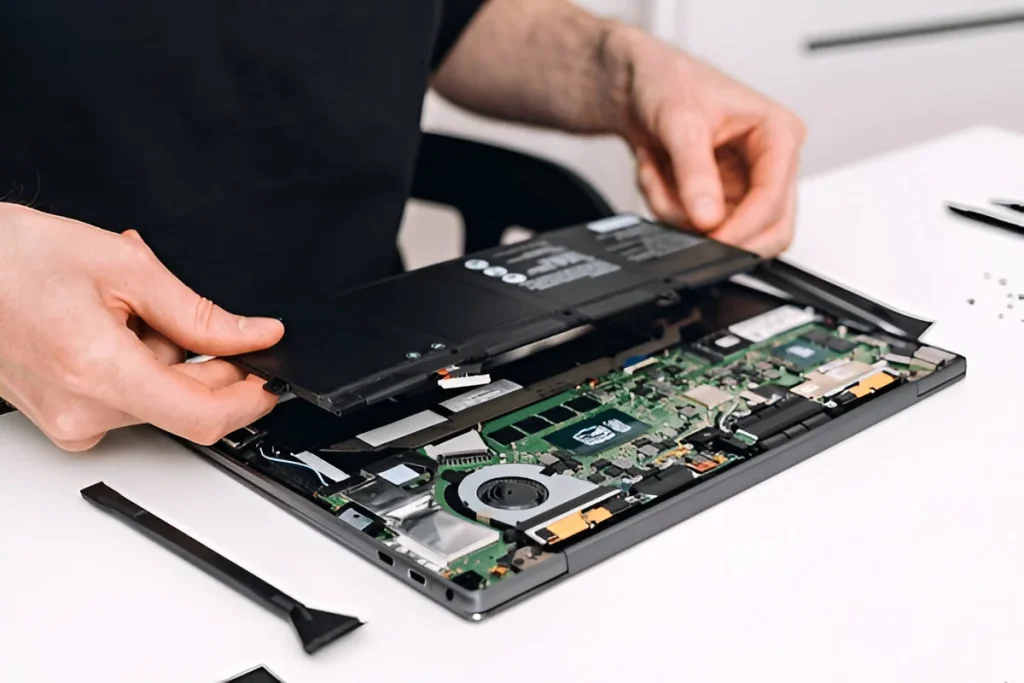
Understanding MacBook Battery Lifespan
MacBook batteries are built using lithium-ion technology, which typically lasts for around 1000 charge cycles. A charge cycle means using 100% of your battery’s capacity—whether in one go or across multiple sessions.
Even with proper care, battery capacity gradually reduces. Once it drops below optimal levels, it becomes necessary to Replace Your MacBook Battery to maintain performance and safety.
Why Timely Battery Replacement is Important
Delaying battery replacement can affect your device in several ways:
- Reduced performance and slower processing
- Frequent charging interruptions
- Increased risk of overheating
- Potential internal hardware damage
- Safety hazards like battery swelling
That’s why experts at the Best Apple Repair Service Center in Kolkata always recommend early diagnosis and timely action.
Top Signs You Need to Replace Your MacBook Battery
1. Battery Drains Too Quickly
If your MacBook no longer lasts even a few hours on a full charge, it’s a strong indication that the battery health has deteriorated.
2. Sudden Shutdowns
Unexpected shutdowns—even when the battery shows remaining charge—are a clear warning sign that you should Replace Your MacBook Battery.
3. Charging Issues
If your MacBook charges very slowly, stops charging midway, or never reaches 100%, the battery may no longer function properly.
4. “Service Recommended” Notification
macOS provides built-in alerts. If you see messages like:
- “Service Battery”
- “Replace Soon”
- “Service Recommended”
…it’s time to visit the Best Apple Repair Service Center in Kolkata.
5. Overheating Problems
A damaged battery often generates excess heat, which can impact your MacBook’s internal components.
6. Swollen Battery (Serious Issue)
If you notice:
- Bulging keyboard
- Lifted trackpad
- Uneven surface
This could be due to a swollen battery, which is dangerous. Immediate action is required to Replace Your MacBook Battery.
7. High Cycle Count
You can check battery cycle count in system settings. If it’s close to or beyond 1000 cycles, your battery is nearing the end of its lifespan.

How to Check MacBook Battery Health
Follow these steps:
- Click on the Apple logo
- Go to System Settings
- Select Battery → Battery Health
If the condition is not “Normal,” it’s advisable to Replace Your MacBook Battery as soon as possible.
Common Mistakes to Avoid
Many users unknowingly damage their battery faster. Avoid:
- Using duplicate or low-quality chargers
- Keeping the laptop plugged in all the time
- Letting battery drain to 0% frequently
- Exposing the device to high temperatures
- Ignoring early warning signs
By avoiding these mistakes, you can delay—but not completely avoid—the need to Replace Your MacBook Battery.
Why Choose Professional Repair Services?
MacBook batteries are not user-replaceable in most models. DIY replacement can:
- Damage internal components
- Void warranties
- Lead to improper installation
At Ctech IT Solutions, the Best Apple Repair Service Center in Kolkata, we ensure:
- Use of high-quality, compatible batteries
- Safe and precise installation
- Experienced technicians
- Fast and reliable service
- Affordable pricing
We focus on delivering long-term performance and customer satisfaction.
Benefits of Replacing Your MacBook Battery
Once you Replace Your MacBook Battery, you’ll notice:
- Improved battery life
- Better system performance
- No unexpected shutdowns
- Enhanced portability
- Longer device lifespan
A simple battery replacement can make your MacBook feel almost new again.

How to check MacBook battery health and cycle count?
Quick Health Check via System Settings
MacBook battery settings
On macOS Sonoma or later, click the Apple menu > System Settings > Battery. Click the “i” icon next to Battery Health to view maximum capacity percentage (ideally above 80%) and any service warnings like “Service Recommended”. This shows real-time condition without extra steps.
Lower capacity means degradation; under 80% often signals time to replace your MacBook battery.
Battery Health panel highlights issues clearly for quick assessment.
Detailed Cycle Count via System Report
For full stats: Hold Option key, Apple menu > System Information > Power (under Hardware). Scroll to Health Information for cycle count (typically 1,000 limit before noticeable wear), condition (Normal/Replace Soon), and capacity.
Cycles track full 0-100% charges; exceeding design limit (e.g., 1,000 for most models) warrants professional check at Ctech IT Solutions, the Best Apple Repair Service Center in Kolkata.
System Information reveals precise cycle data and status.
Terminal Command for Pros
Run system_profiler SPPowerDataType in Terminal (Applications > Utilities) for a report listing cycles, amps, voltage, and health—ideal for scripting or logs. Cross-reference with Apple’s specs: Pro models often handle 1,000 cycles at 80% capacity.
What the Numbers Mean
- Cycle Count >1,000: Performance drops; replace your MacBook battery proactively.
- Capacity <80%: Reduced runtime; visit Ctech IT Solutions, Best Apple Repair Service Center in Kolkata, for diagnostics

What is a good battery cycle count for MacBook?
A good battery cycle count for a MacBook stays well under its model-specific design limit, typically around 1,000 cycles where it retains 80% capacity.
Design Limits by Model
Apple rates most modern MacBooks (post-2010, including Air and Pro with M-series chips) for 1,000 cycles before significant degradation. Older models vary: 500 cycles for some 2008-2009 units, 300 for early Intel Pros.
Under 300 cycles signals excellent health; 300-700 is moderate and normal for 1-2 years of use.
System Information displays cycle count alongside health metrics.
What Counts as “Good”
- Excellent (<300): Near-full capacity, 10+ hour runtime—ideal for resale.
- Good (300-700): Minimal wear, no service warnings.
- Fair (700-1,000): Expect 80-90% capacity; monitor for “Service Battery”.
- Poor (>1,000): Replace your MacBook battery to restore performance.
Check via System Information as detailed earlier.
Factors Affecting Cycles
A cycle equals 100% discharge (e.g., two 50% drains count as one). Heavy users hit limits faster, but optimized charging (20-80%) extends life beyond ratings.
| Usage Level | Expected Cycles to 80% | Action |
| Light | 1,200+ | Continue monitoring |
| Average | 800-1,000 | Check capacity yearly |
| Heavy | 500-800 | Replace near 1,000 |
Visit Ctech IT Solutions, the Best Apple Repair Service Center in Kolkata, if approaching limits. Ties to prior checks: pair with health percentage for full picture.
Also Read: iCloud Drive Not Syncing On Mac? Easy Tips to Solve the Problem

MacBook Battery Swelling: Warning Signs & Emergency Fixes
MacBook battery swelling is a serious issue that can damage your device and pose safety risks. Recognizing early signs allows quick action to protect your data and hardware.
What Causes Battery Swelling?
Lithium-ion batteries in MacBooks expand when gases build up from chemical degradation, often triggered by heat exposure, overcharging, or physical damage. This typically occurs after 3-5 years or 800+ charge cycles, more rapidly in hot climates like Kolkata’s summers.
The swelling lifts trackpads or separates the chassis, indicating internal pressure buildup.
Critical Warning Signs
Spot these red flags immediately:
- Trackpad or keyboard lifts or feels spongy under pressure.
- Gaps appear between the bottom case and body.
- MacBook won’t lie flat on a table.
- Clicking/popping sounds when pressing the base.
- Sudden shutdowns or poor battery performance.
If you notice any of these, stop using the MacBook—continued pressure can puncture the battery, risking
MacBook battery swelling is a serious issue that can damage your device and pose safety risks. Recognizing early signs allows quick action to protect your data and hardware.
What Causes Battery Swelling?
Lithium-ion batteries in MacBooks expand when gases build up from chemical degradation, often triggered by heat exposure, overcharging, or physical damage. This typically occurs after 3-5 years or 800+ charge cycles, more rapidly in hot climates like Kolkata’s summers.
The swelling lifts trackpads or separates the chassis, indicating internal pressure buildup.
Critical Warning Signs
MacBook battery replacement
Spot these red flags immediately:
- Trackpad or keyboard lifts or feels spongy under pressure.
- Gaps appear between the bottom case and body.
- The MacBook won’t lie flat on a table.
- Clicking/popping sounds when pressing the base.
- Sudden shutdowns or poor battery performance.
If you notice any of these, stop using the MacBook—continued pressure can puncture the battery, which could cause a fire.
Swollen batteries create visible chassis separation during inspection.
Emergency Response Steps
1. Power off immediately and unplug all cables.
2. Do not press on swollen areas—this risks rupture.
3. Backup data via Target Disk Mode or external enclosure if possible.
4. Avoid charging or heat exposure.
5. Seek professional service ASAP.
Never attempt DIY battery removal on swollen units—technicians use proper safety gear and disposal protocols.

Professional Repair Process
At Ctech IT Solutions, the Best Apple Repair Service Center in Kolkata, we handle swollen battery emergencies with:
- Full safety assessment and gas venting in controlled conditions.
- Genuine battery replacement with logic board inspection.
- Same-day service for most models (1-3 hours).
- Free diagnostics to check for related damage.
DIY risks chemical exposure and voided warranties—always choose certified experts.
Prevention Strategies
Keep your MacBook cool (under 95°F), enable Optimized Battery Charging, and avoid sleeping at 100% charge overnight. Regular health checks (System Settings > Battery) catch issues before swelling starts.
How to improve MacBook battery health?
Improving MacBook battery health involves optimizing settings, usage habits, and maintenance to slow degradation and extend runtime. Proactive steps can keep capacity above 80% well beyond 1,000 cycles, tying into when to replace your MacBook battery.
Enable Key Software Features
Turn on Optimized Battery Charging in System Settings > Battery—it holds at 80% until needed, reducing wear from full charges. Activate Low Power Mode for battery use to throttle performance and dim the screen automatically.
Update macOS regularly for efficiency gains that cut idle drain by 10-20%.
Battery settings let you toggle optimizations for longevity.
Daily Usage Habits
Lower screen brightness to 50% via F1/F2 keys or auto-adjust—screens consume 30-50% of power. Close unused apps via Activity Monitor’s Energy tab and limit browser tabs to under 10.
Disable keyboard backlight (System Settings > Keyboard) and Bluetooth/Wi-Fi when idle; avoid extreme heat (under 95°F).
Long-Term Maintenance
Use official chargers and unplug occasionally—constant 100% charging accelerates aging. Calibrate monthly: drain to 10%, charge uninterrupted to 100% for accurate readings.
How Often Should You Replace Your MacBook Battery?
Typically, you may need to Replace Your MacBook Battery every 3–5 years, depending on usage patterns and maintenance.
Heavy users may need replacement earlier, while light users may extend battery life with proper care.

FAQ
1. How do I know when to Replace Your MacBook Battery?
You should replace your MacBook battery if you notice fast draining, sudden shutdowns, or a “Service Battery” warning in system settings.
2. How long does a MacBook battery usually last?
A MacBook battery typically lasts 3–5 years or around 1000 charge cycles, depending on usage and maintenance.
3. Is it safe to use a MacBook with a damaged battery?
No, using a damaged or swollen battery can be dangerous and may harm internal components, so it’s best to Replace Your MacBook Battery promptly.
4. Can I Replace Your MacBook Battery myself?
It is not recommended, as MacBooks are delicate. Always choose professionals like the Best Apple Repair Service Center in Kolkata for safe replacement.
5. Will replacing the battery improve performance?
Yes, once you Replace Your MacBook Battery, you will notice better battery life, smoother performance, and fewer unexpected shutdowns.
Conclusion
Your MacBook’s battery is a critical component that directly affects performance, safety, and usability. Ignoring early warning signs can lead to bigger problems and higher repair costs.
If you notice any issues like fast draining, overheating, or system warnings, don’t delay—Replace Your MacBook Battery at the right time.
Visit Ctech IT Solutions, the Best Apple Repair Service Center in Kolkata, for expert diagnosis and reliable battery replacement services. With professional care and quality service, your MacBook can continue to perform at its best for years to come.
Categories:

Amartya Banerjee
amartya
Related Posts


Recent Posts

Why Does Your iPhone Get Hot While Charging?
Aug 7, 2026
How Can You Check Your MacBook Battery Health?
Aug 7, 2026
M1, M2 or M3 MacBook: Which Needs Different Repairs?
Jul 28, 2026
Why Does Your Laptop Overheat Even After Cleaning?
Jul 24, 2026