
Aug 21

 Amartya Banerjee
Hello Reader!
Welcome to the blog page of Ctech IT Solutions, one of the Best Apple Repair Service Center in Kolkata.
A slow computer can turn simple tasks into frustrating experiences. Whether you are using your computer for office work, studying, browsing, editing, designing, or entertainment, poor performance can affect your productivity and waste valuable time. Fortunately, in many cases, you do not need to replace your computer immediately. With the right maintenance practices and a few smart changes, you can speed up your computer and enjoy a much smoother experience.
If you use a MacBook, iMac, Mac Mini, or another Apple computer and continue experiencing freezing, application crashes, slow startup, overheating, or unusual performance issues, professional assistance may also be necessary. Ctech IT Solution, the Best Apple Repair Service Center in Kolkata, can help diagnose hardware and software-related problems and provide appropriate repair and maintenance solutions.
In this blog, we will discuss some practical and effective ways to speed up your computer and smoothen your computer performance.

Before learning how to speed up your computer, it is important to understand why computers become slower over time.
Some common causes include:
Sometimes, a computer becomes slow because of a combination of several factors. Identifying the actual cause is important before attempting major repairs or upgrades.
One of the simplest ways to speed up your computer is to maintain sufficient free storage space.
When your storage drive becomes almost full, your operating system may have less room for temporary files, caches, updates, and other processes. This can contribute to sluggish performance.
Consider removing:
However, always check important files before deleting anything. If you are unsure about what can safely be removed, professional assistance from the Best Apple Repair Service Center in Kolkata can help prevent accidental data loss.
Many applications automatically launch when you turn on your computer. While some startup programs are useful, having too many can significantly increase startup time and consume system resources.
Review your startup or login items and disable applications that you do not need immediately after turning on your computer.
This can help your computer boot faster and make it more responsive immediately after startup.
If your Mac takes an unusually long time to start even after reducing startup applications, there could be an underlying software or hardware issue that requires professional diagnosis.
Applications running in the background continue consuming RAM, CPU resources, and sometimes battery power.
If you have several resource-intensive applications running simultaneously, your computer may start responding slowly.
Close applications that you are not currently using. On a Mac, you can also check which applications and processes are consuming significant system resources.
Regularly monitoring resource usage is a useful way to smoothen your computer performance.
Operating system updates often include:
Using an outdated operating system can sometimes result in compatibility and performance issues.
Therefore, keep your operating system updated whenever possible. Before major updates, however, it is wise to maintain a reliable backup of important data.
Outdated applications can sometimes become unstable or consume excessive system resources.
Developers regularly release updates to improve performance, fix bugs, enhance compatibility, and address security vulnerabilities.
Make sure frequently used applications such as browsers, productivity tools, design software, and communication applications are updated.
Keeping your software ecosystem updated can help speed up your computer and reduce application-related problems.
Modern web browsers can consume a considerable amount of memory, especially when you keep dozens of tabs open.
To smoothen your computer, consider:
If your computer becomes slow primarily while browsing, the browser may be one of the first places you should investigate.
Many users keep their computers running continuously for long periods.
A restart can help clear temporary processes, refresh system resources, complete certain updates, and resolve minor software glitches.
If your computer has become noticeably slower after extended use, restarting it may provide a temporary performance improvement.
However, if the problem returns frequently, you should investigate the underlying cause rather than relying only on repeated restarts.
Malware, adware, potentially unwanted applications, and other suspicious software can negatively affect computer performance.
Possible warning signs include:
Use trusted security software and avoid downloading applications from suspicious sources.
If you suspect that your Apple computer has a serious software problem, consulting the Best Apple Repair Service Center in Kolkata can be a safer approach than experimenting with unknown repair tools.
Overheating can affect computer performance. When internal components become excessively hot, the system may reduce performance to manage the temperature.
Signs of overheating may include:
Keep ventilation areas unobstructed and avoid using your computer on surfaces that block airflow.
If overheating continues despite proper ventilation, professional inspection may be required. Dust accumulation, fan problems, thermal issues, or hardware faults can sometimes be responsible.
If your computer frequently struggles while multitasking, insufficient RAM could be contributing to the problem.
For example, running a browser with numerous tabs alongside video editing software, design applications, spreadsheets, and communication tools can consume substantial memory.
Depending on the computer model, RAM upgrades may or may not be possible. Some modern Apple devices have memory integrated into the system, meaning upgrading after purchase may not be practical.
A professional technician can assess your system and determine whether a hardware upgrade is possible or whether another solution would be more appropriate.
Older computers equipped with traditional hard disk drives can feel significantly slower than modern systems using SSD storage.
An SSD can improve:
If your older computer supports an SSD upgrade, replacing a slow aging drive can be one of the most noticeable hardware improvements.
Before upgrading, professional assessment is recommended to determine compatibility and ensure your data is properly backed up.
Unused applications take up storage and may sometimes install background services or startup components.
Go through your installed applications periodically and remove software you no longer need.
Do not randomly delete system files or unfamiliar components. Removing essential operating system files can cause additional problems.
When in doubt, consult the Best Apple Repair Service Center in Kolkata for safe system cleaning and troubleshooting.
Photos, videos, project files, downloads, and backups can quickly consume storage space.
Organize your data and move files that you do not regularly need to external storage or an appropriate cloud storage solution.
At the same time, maintain at least one reliable backup of important files. Freeing storage should never come at the cost of losing valuable personal or professional data.
Modern operating systems use animations, transparency, and other visual effects to create a polished interface.
On an older or resource-constrained computer, reducing certain visual effects may make the interface feel more responsive.
This will not magically transform an old computer into a new one, but it can be helpful when the system has limited resources.
A cluttered desktop can make it difficult to find files and may contribute to unnecessary file management overhead.
Instead of keeping hundreds of files on your desktop, organize them into appropriate folders.
Create a simple structure for:
A well-organized system is easier to maintain and makes everyday computer use more efficient.
Before making major changes to your computer, always back up important information.
A backup is particularly important before:
A professional technician can also help you create a safe backup and data-transfer strategy when necessary.
Occasional software glitches can happen, but frequent crashes, freezing, unexpected shutdowns, or persistent slow performance should not be ignored.
These symptoms may indicate:
If basic optimization does not smoothen your computer, professional diagnosis is recommended.
Also Read: Helpful Ways on How to Clean Your Laptop
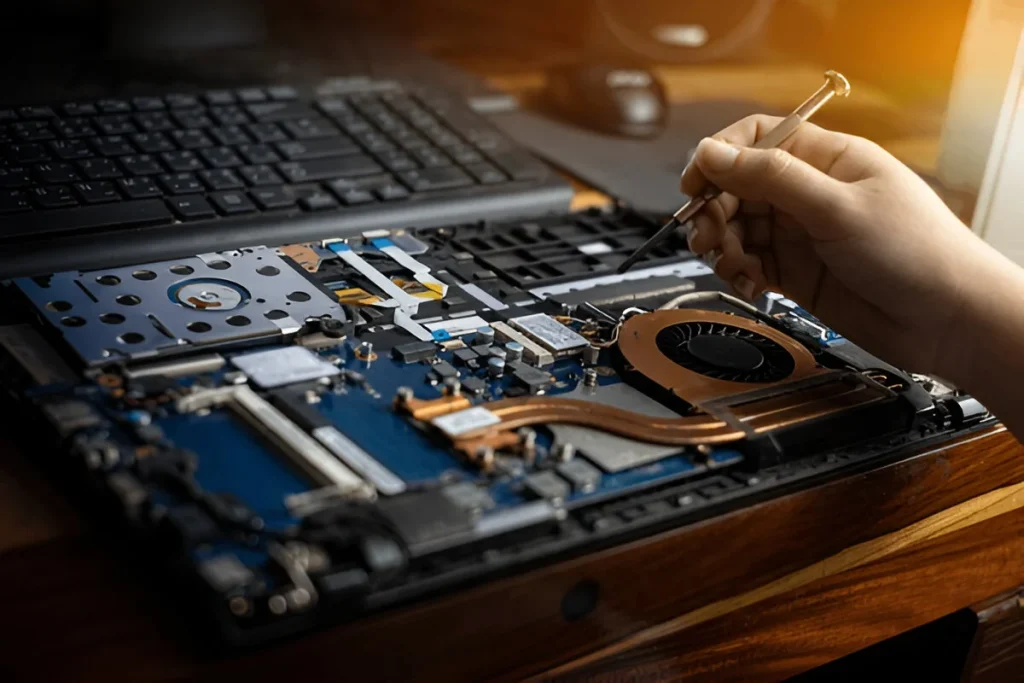
Sometimes, simple maintenance is enough to speed up your computer. But if performance problems continue, professional troubleshooting can identify problems that are not obvious to the average user.
Consider professional assistance if:
For Apple users in Kolkata, Ctech IT Solution – Best Apple Repair Service Center in Kolkata can provide professional assistance for diagnosing and resolving Apple computer-related issues.
At Ctech IT Solution, the Best Apple Repair Service Center in Kolkata, our goal is to help customers get their Apple devices working smoothly and reliably.
Depending on the issue, professional troubleshooting may involve:
Instead of repeatedly trying random fixes, professional diagnosis can help identify the actual reason behind your computer’s slow performance.
1. What are the easiest ways to speed up your computer?
Free up storage space, remove unnecessary applications, disable unwanted startup programs, close background apps, and keep your operating system updated.
2. Can low storage make my computer slow?
Yes. When your storage drive is nearly full, system performance can suffer. Removing unnecessary files and maintaining adequate free space can help smoothen your computer.
3. How can I smoothen my computer while multitasking?
Close unused applications and browser tabs, reduce unnecessary background processes, and consider a RAM upgrade if your computer consistently struggles with multitasking.
4. Does overheating affect computer performance?
Yes. Excessive heat can cause the system to reduce performance. Keeping ventilation areas clear and getting the cooling system checked can help speed up your computer.
5. When should I consult the Best Apple Repair Service Center in Kolkata?
If your Mac remains slow despite basic optimization, or experiences frequent crashes, overheating, freezing, or unexpected shutdowns, professional diagnosis from the Best Apple Repair Service Center in Kolkata is recommended.
A slow computer does not always mean that you need to buy a new one. Simple steps such as freeing storage, controlling startup applications, updating software, managing browser usage, keeping the device cool, and removing unnecessary applications can significantly improve everyday performance.
If you want to speed up your computer and smoothen your computer experience, start with regular maintenance and responsible system management. And when the issue appears to be related to hardware, overheating, storage, or deeper software problems, professional assistance is the safer option.
For Apple users looking for reliable technical assistance, Ctech IT Solution – Best Apple Repair Service Center in Kolkata can help diagnose your device and recommend an appropriate solution.





Our team of experts is ready to assist you with any Apple device repairs or issues.
Contact Us Today
464/1, Jessore Rd, Amarpalli, South Dum Dum, West Bengal 700074