
What to Do When Your Laptop Overheats Frequently
Laptop overheating can lead to hardware damage and performance issues. Learn how the best Apple service center in Kolkata explains causes, fixes, and prevention tips.
Understanding Why Laptop Overheating Is a Serious Issue
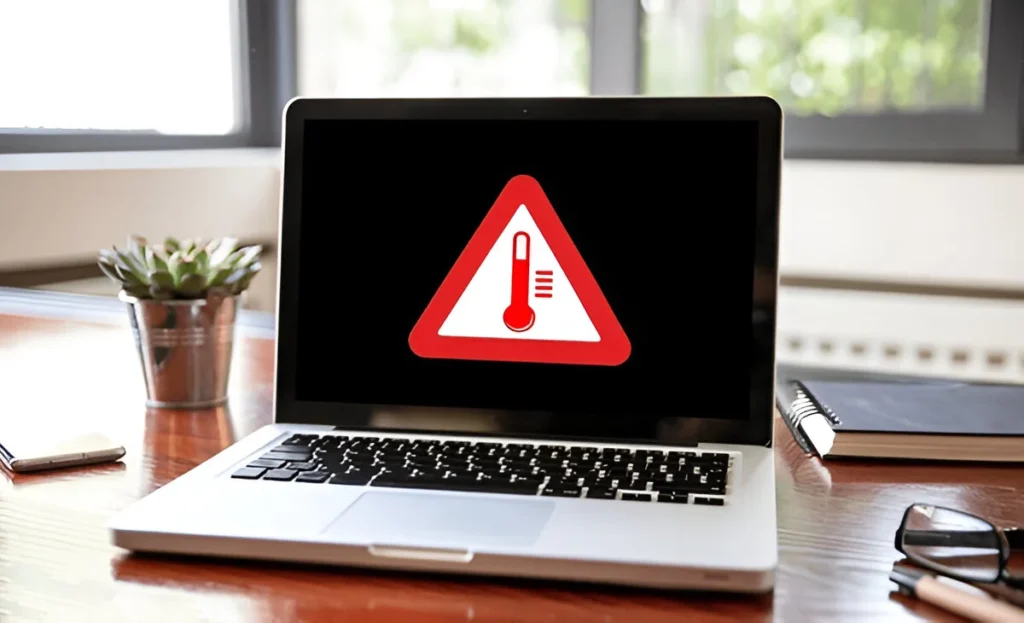
Laptop overheating is one of the most common issues faced by users today. From students to professionals, most people rely on laptops for long hours, often unaware of how quickly these compact devices can overheat.
If ignored, frequent overheating can damage internal components, reduce performance, and even shorten the lifespan of your laptop. Whether you use a Windows device or a MacBook, understanding the causes and solutions for overheating is essential.
Common Causes of Laptop Overheating
Before addressing how to fix the issue, let’s explore what typically causes laptops to overheat:
- Blocked vents and fans: Dust and debris clog the air vents, preventing proper heat dissipation.
- Aging thermal paste: Over time, the thermal paste between the CPU and heat sink dries out, reducing heat transfer efficiency.
- Heavy software usage: Running multiple applications, games, or video editing tools pushes the CPU and GPU beyond normal limits.
- Faulty cooling systems: Broken fans or heat sinks fail to regulate temperature.
- External factors: Using the laptop on beds or soft surfaces blocks ventilation, and high ambient temperatures also contribute.
Warning Signs of an Overheating Laptop
Knowing when your laptop is overheating helps you act before permanent damage occurs. Look out for these signs:
- The laptop becomes unusually hot to touch.
- Fans are running at high speeds and making loud noises.
- System performance slows down significantly.
- Random shutdowns or restarts during heavy tasks.
- Battery drains quickly or fails to charge properly.
- The screen freezes, or you encounter frequent errors.
If these symptoms appear frequently, it’s time to take action.
Immediate Steps to Cool Down an Overheating Laptop
When you notice your laptop getting too hot, here’s what you should do immediately:
- Shut down the laptop and let it cool for 10–15 minutes.
- Place it on a hard, flat surface to allow proper air circulation.
- Remove external devices (like USB drives) that might draw extra power.
- Ensure the air vents are not blocked.
- Avoid using the laptop in direct sunlight or hot environments.
These are temporary measures. For a long-term solution, you need to address the root cause.
Preventive Measures to Stop Laptop Overheating
To keep your laptop cool and prevent recurring problems, consider these practices:
- Clean air vents regularly: Use compressed air to remove dust from vents and fans.
- Invest in a cooling pad: An external cooling pad improves airflow and reduces heat buildup.
- Check for software overload: Close unnecessary apps running in the background.
- Update drivers and firmware: Outdated software can overwork the system hardware.
- Replace thermal paste: For older laptops, a professional technician can apply fresh thermal paste.
- Avoid using laptops on beds or cushions: Soft surfaces block ventilation.
- Monitor temperature: Use software tools to check CPU and GPU temperatures regularly.

Laptop Overheating: When to Seek Professional Help
While cleaning and cooling pads help in minor cases, persistent overheating can indicate deeper issues that require professional assistance.
- If the fans are broken or not spinning properly.
- If thermal paste replacement is needed.
- If overheating persists despite preventive measures.
Certified technicians at a reputable service center are trained to handle MacBook-specific heat management problems and ensure safe hardware repairs without voiding warranties.
Laptop Overheating and Its Long-Term Impact
Ignoring laptop overheating can lead to serious consequences, such as:
- Permanent CPU and GPU damage.
- Reduced battery health and shorter battery life.
- Data loss from unexpected shutdowns.
- Motherboard failure requiring expensive repairs.
Early intervention is critical to avoid these costly outcomes.
Frequently Asked Questions
Q1: Is laptop overheating normal during gaming or video editing?
It’s common for laptops to heat up during demanding tasks, but excessive heat or shutdowns indicate a problem. Consider using a cooling pad and lowering graphic settings.
Q2: Can I fix laptop overheating at home?
Basic cleaning and software tweaks help. However, for fan repairs or thermal paste replacement, professional servicing is recommended.
Q3: How often should I clean my laptop vents?
Ideally every 3–6 months, depending on your environment (more often in dusty areas).
Q4: Does replacing thermal paste really make a difference?
Yes. Old thermal paste loses effectiveness over time. Fresh paste restores heat transfer efficiency between components.
Q5: Are MacBooks more prone to overheating?
MacBooks are designed with advanced thermal systems, but prolonged heavy usage and blocked vents can still lead to overheating.
Protect Your Laptop from Overheating
Laptop overheating is not just an inconvenience; it’s a warning that your device is under stress. By taking proactive steps, such as cleaning vents, managing software usage, and using cooling accessories, you can significantly reduce heat buildup.
If problems persist, professional servicing is the safest option to prevent long-term damage. Trusted experts, can provide advanced solutions tailored to your laptop’s needs.
With the right care and attention, you can extend your laptop’s lifespan and enjoy optimal performance without interruptions.
Categories:

Sayanava Singha Roy
sayanava
Related Posts


Recent Posts

Is MacBook Air Battery Replacement Really Expensive?
Mar 28, 2026
When To Replace Your MacBook Battery?
Mar 26, 2026
MacBook Battery Dying Fast? Fix It!
Mar 24, 2026