
How to Fix the MacBook Running Slow Issue?
Hello Reader!
Welcome to the blog page of Ctech IT Solutions, one of the best laptop repair service center in Kolkata.
A MacBook running slow can be extremely frustrating—especially when you rely on it for work, studies, or business. Over time, even the most premium Apple devices may experience performance issues due to software overload, insufficient storage, or outdated system settings.
At Ctech IT Solutions, the Best Laptop Repair Service Center in Kolkata, we often receive complaints from users saying their MacBook running slow affects productivity. The good news? Many performance issues can be fixed at home with simple steps.
Let’s explore easy and effective ways to fix MacBook running slow problems and restore your device’s speed.

Common Reasons Why Your MacBook Is Running Slow
Before fixing the issue, it’s important to understand why your MacBook running slow problem occurs:
- Too many startup programs
- Low storage space
- Outdated macOS
- Background apps consuming RAM
- Malware or unwanted extensions
- Overheating or hardware aging
If these issues are ignored, your Mac’s performance can deteriorate further—eventually requiring professional support from the Best Laptop Repair Service Center in Kolkata.
Diagnosing the Issue
Diagnosing the issue is crucial when your MacBook running slow disrupts daily tasks. The built-in Activity Monitor serves as your first-line detective tool to pinpoint resource hogs like excessive CPU, memory, or disk usage.
Launching Activity Monitor
Access this free utility via Spotlight (Command + Space, type “Activity Monitor”) or Applications > Utilities folder. It displays real-time data across tabs for CPU, Memory, Energy, Disk, and Network, revealing why your MacBook running slow occurs during routine use.
Analyzing CPU Usage
Sort the CPU tab by “% CPU” to spot apps consuming over 50%—common culprits include browsers with many tabs or outdated software. Quit high-usage processes via the “X” button (select first), but avoid force-quitting system processes like “kernel_task,” which manage heat.
Checking Memory Pressure
In the Memory tab, observe the graph: green means healthy, yellow signals strain, and red indicates overload causing lag. If “Memory Used” nears your total RAM, close memory-intensive apps or restart to free swap space on your drive.
Disk and Energy Insights
High disk activity (Disk tab, over 100% usage) points to full storage or failing drives slowing your MacBook running slow. Energy tab highlights power-hungry apps; limit them on battery. For persistent issues, save diagnostics via File > Save as PDF for the Best Laptop Repair Service Center in Kolkata like Ctech IT Solutions.

Easy Steps to Fix MacBook Running Slow at Home
1. Restart Your MacBook Regularly
A simple restart clears temporary files and frees up memory. If your MacBook running slow issue has appeared suddenly, restarting can often fix it instantly.
2. Check and Free Up Storage Space
Low storage is a major cause of a MacBook running slow.
How to check storage:
- Go to Apple Menu → About This Mac → Storage
- Aim to keep at least 15–20% free space
Quick tips to free storage:
- Delete unused apps
- Remove old downloads
- Clear large media files
- Empty Trash regularly
3. Close Unnecessary Background Applications
Too many apps running simultaneously consume RAM and CPU.
Steps:
- Press Command + Space
- Search Activity Monitor
- Close apps using excessive memory or CPU
This can significantly improve performance if your MacBook running slow during multitasking.
4. Disable Startup Programs
Startup apps slow down boot time and overall performance.
Steps to disable:
- Go to System Settings → General → Login Items
- Remove unnecessary apps
This ensures faster startup and helps resolve MacBook running slow complaints.
5. Update macOS Regularly
Outdated software may cause bugs and performance issues.
Steps:
- Go to System Settings → Software Update
- Install the latest macOS version
Apple often includes performance enhancements that help fix a MacBook running slow issue.
6. Reduce Visual Effects
Fancy animations can slow older MacBooks.
Steps:
- Go to System Settings → Accessibility → Display
- Enable Reduce Motion and Reduce Transparency
This lightweight change can instantly speed up a MacBook running slow.
7. Clear Browser Cache and Extensions
Browsers consume significant memory.
Tips:
- Clear cache and cookies
- Remove unused extensions
- Avoid running multiple browsers simultaneously
A cluttered browser is a hidden reason behind MacBook running slow performance.
8. Check for Malware or Unwanted Software
Although macOS is secure, malware can still cause performance issues.
- Avoid unknown apps
- Remove suspicious software
- Install trusted security tools
If malware is detected, consulting the Best Laptop Repair Service Center in Kolkata is recommended.
Also Read: When To Replace Your MacBook Battery: A Complete Guide for Mac Users
When Home Fixes Are Not Enough
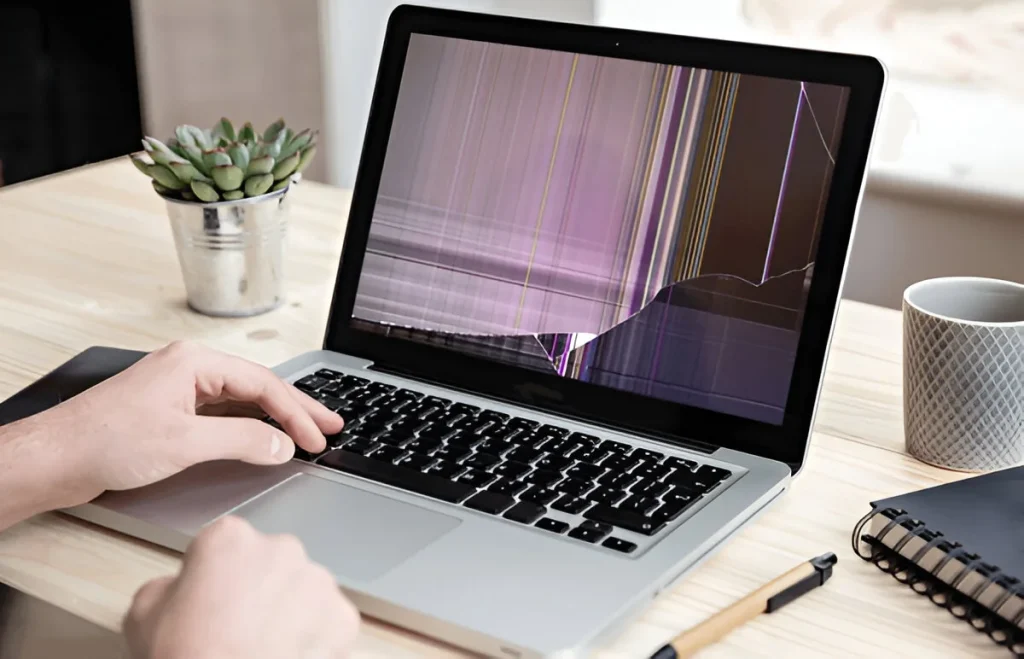
If your MacBook running slow issue persists even after trying these steps, the problem may be hardware-related:
- Failing SSD
- Insufficient RAM
- Overheating issues
- Logic board problems
In such cases, expert diagnosis is essential.

Diagnosing the Issue
Diagnosing the issue is crucial when your MacBook running slow disrupts daily tasks. The built-in Activity Monitor serves as your first-line detective tool to pinpoint resource hogs like excessive CPU, memory, or disk usage.
Launching Activity Monitor
Access this free utility via Spotlight (Command + Space, type “Activity Monitor”) or Applications > Utilities folder. It displays real-time data across tabs for CPU, Memory, Energy, Disk, and Network, revealing why your MacBook running slow occurs during routine use.
Analyzing CPU Usage
Sort the CPU tab by “% CPU” to spot apps consuming over 50%—common culprits include browsers with many tabs or outdated software. Quit high-usage processes via the “X” button (select first), but avoid force-quitting system processes like “kernel_task,” which manage heat.
Checking Memory Pressure
In the Memory tab, observe the graph: green means healthy, yellow signals strain, and red indicates overload causing lag. If “Memory Used” nears your total RAM, close memory-intensive apps or restart to free swap space on your drive.
Disk and Energy Insights
High disk activity (Disk tab, over 100% usage) points to full storage or failing drives slowing your MacBook running slow. Energy tab highlights power-hungry apps; limit them on battery. For persistent issues, save diagnostics via File > Save as PDF for the Best Laptop Repair Service Center in Kolkata like Ctech IT Solutions.

Optimizing macOS Settings
Optimizing macOS settings can dramatically improve performance when your MacBook running slow hampers productivity. Fine-tuning energy saver options, visual effects, and Spotlight indexing targets built-in features that quietly drain resources over time.
Energy Saver Adjustments
Navigate to System Settings > Battery (or Energy Saver on older macOS) to tweak power management. Enable “Low Power Mode” on battery for Apple Silicon Macs to throttle background tasks, and uncheck “Enable Power Nap” to prevent syncing during sleep, reducing wake-up lag that contributes to MacBook running slow.
Reducing Visual Effects
Visual animations like Dock zooms or transparency eat GPU cycles unnecessarily. Go to System Settings > Accessibility > Display, turn on “Reduce motion” and “Reduce transparency” for snappier interface responses. Minimize Dock icons and auto-hide it to lighten rendering loads on aging hardware.
Spotlight Indexing Control
Spotlight’s constant file scanning can spike CPU and disk usage, especially post-update. Exclude heavy folders like Downloads or virtual machines via System Settings > Siri & Spotlight > Spotlight Privacy—drag them in to pause indexing there. Rebuild the index if needed by deleting ~/Library/Metadata/Spotlight/V100 (in Terminal: sudo mdutil -E /), speeding up searches without full system scans.
These tweaks reclaim resources effortlessly at home, but for a stubborn MacBook running slow issues, the Best Laptop Repair Service Center in Kolkata, Ctech IT Solutions, offers pro diagnostics. Regular optimization keeps your Mac humming smoothly long-term.

Software Cleanup Tips
Software cleanup tips offer a straightforward way to banish the MacBook running slow problem by eliminating digital clutter that builds up over time. Uninstalling unused apps, managing fonts, and limiting login items directly reduces background processes, freeing up precious CPU, RAM, and storage for smoother operation.
Uninstall Unused Apps
Hunt down forgotten applications hogging space via Launchpad (pinch with thumb/trackpad) or Applications folder—drag them to Trash or use App Cleaner for thorough removal of leftovers. Apps like Adobe trials or old games often linger, contributing to MacBook running slow; check System Settings > General > Storage to identify and offload the biggest offenders to external drives.
Manage Fonts Effectively
Excessive fonts slow font rendering and Spotlight searches. Open Font Book (Applications > Font Book), select duplicates via File > Look for Enabled Duplicates, and disable or remove them to declutter. Custom font collections from design work can balloon libraries—keep under 10,000 active fonts for optimal performance without triggering MacBook running slow during text-heavy tasks.
Limit Login Items
Background apps launching at startup multiply boot times and idle resource use. Head to System Settings > General > Login Items, remove non-essentials like Dropbox sync or chat clients by selecting and clicking the minus (-) button. Review “Allow in Background” items too, as they run invisibly; trimming these prevents constant drain on your MacBook running slow even after fresh restarts.
These simple software cleanup steps reclaim performance instantly at home, but persistent MacBook running slow woes may signal deeper issues—reach out to the Best Laptop Repair Service Center in Kolkata, Ctech IT Solutions, for expert intervention. Consistent maintenance ensures your Mac stays agile for years.
Hardware Upgrade Options
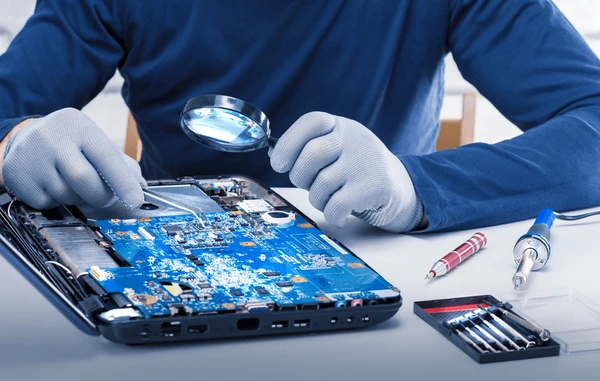
When every software tweak has been tried and your MacBook running slow still disrupts work, it is time to consider hardware upgrades. Strategic upgrades like SSD swaps and RAM boosts often deliver a dramatic, long-term performance jump, especially on older models.
When Hardware Upgrades Make Sense
A MacBook running slow despite clean storage, optimized settings, and a fresh macOS install usually points to hardware bottlenecks. Common signs include very slow boot times, frequent beachballs even with few apps open, and lag during basic multitasking. At this stage, internal components like the hard drive and RAM become the limiting factors rather than software clutter.
SSD Upgrade: From HDD to Speed
Traditional hard disk drives (HDDs) are mechanically slow compared to modern solid-state drives (SSDs). Replacing an old HDD with an SSD can:
- Cut boot times from minutes to seconds.
- Speed up app launches, file transfers, and overall responsiveness.
- Reduce noise and heat, since SSDs have no moving parts.
For many users facing a MacBook running slow, an SSD swap feels like getting a “new” Mac without the cost of a full replacement. Professional technicians at the Best Laptop Repair Service Center in Kolkata, such as Ctech IT Solutions, can clone your existing data, install the SSD, and ensure macOS runs smoothly afterward.
RAM Upgrade: More Room to Breathe
RAM (memory) determines how many apps and browser tabs your MacBook can handle at once without slowing down. If you see constant app freezes, heavy swap usage, or issues when multitasking, a RAM upgrade can:
- Improve performance with professional apps like Photoshop, Xcode, or virtual machines.
- Reduce reliance on slow disk-based virtual memory.
- Make everyday tasks like browsing, email, and video calls feel smoother.
Not all MacBooks have upgradeable RAM—newer models often have it soldered to the motherboard. In such cases, consulting the Best Laptop Repair Service Center in Kolkata helps confirm what is realistically upgradeable in your particular model and whether other hardware optimizations are possible.

Professional Installation vs DIY
While online guides may make hardware upgrades look simple, MacBooks use delicate components, proprietary screws, and sensitive cables. A wrong move can damage the logic board, battery, or connectors, turning a MacBook running slow into a MacBook not turning on at all. Visiting a trusted expert like Ctech IT Solutions, known as a Best Laptop Repair Service Center in Kolkata, ensures:
- Proper component selection compatible with your exact Mac model.
- Safe installation with anti-static precautions and correct tools.
- Data backup and restoration, plus post-upgrade testing for stability.
Long-Term Value of Upgrades
Investing in SSDs and RAM can extend your Mac’s usable life by several years, delaying the need to buy a new machine. This is especially beneficial for students, freelancers, and professionals who want high performance without a huge budget. If your MacBook running slow is hurting productivity or business, a quick evaluation at the Best Laptop Repair Service Center in Kolkata like Ctech IT Solutions can determine the most cost-effective upgrade path and give your device a powerful second life.
Why Choose Ctech IT Solutions?
At Ctech IT Solutions, we are recognized as the Best Laptop Repair Service Center in Kolkata, offering specialized MacBook repair services.
What We Offer:
✔ MacBook speed optimization
✔ SSD upgrades & RAM upgrades
✔ macOS troubleshooting
✔ Hardware diagnostics
✔ Genuine spare parts
✔ Affordable & transparent pricing
Our experienced technicians ensure your MacBook running slow problem is resolved efficiently and professionally.
Final Thoughts
A MacBook running slow does not always mean it needs replacement. With proper maintenance and the right steps, you can restore its speed at home. However, for persistent or hardware-related issues, trusting professionals is the safest option.
For reliable, fast, and expert service, visit Ctech IT Solutions, the Best Laptop Repair Service Center in Kolkata, and give your MacBook the performance boost it deserves.
Categories:

Amartya Banerjee
amartya
Related Posts


Recent Posts

Is MacBook Air Battery Replacement Really Expensive?
Mar 28, 2026
When To Replace Your MacBook Battery?
Mar 26, 2026
MacBook Battery Dying Fast? Fix It!
Mar 24, 2026